Automations
An automation is a trigger, a set of steps, and the connections between them. This page is the mental model; the following pages show the editor, the YAML, the library and the examples.
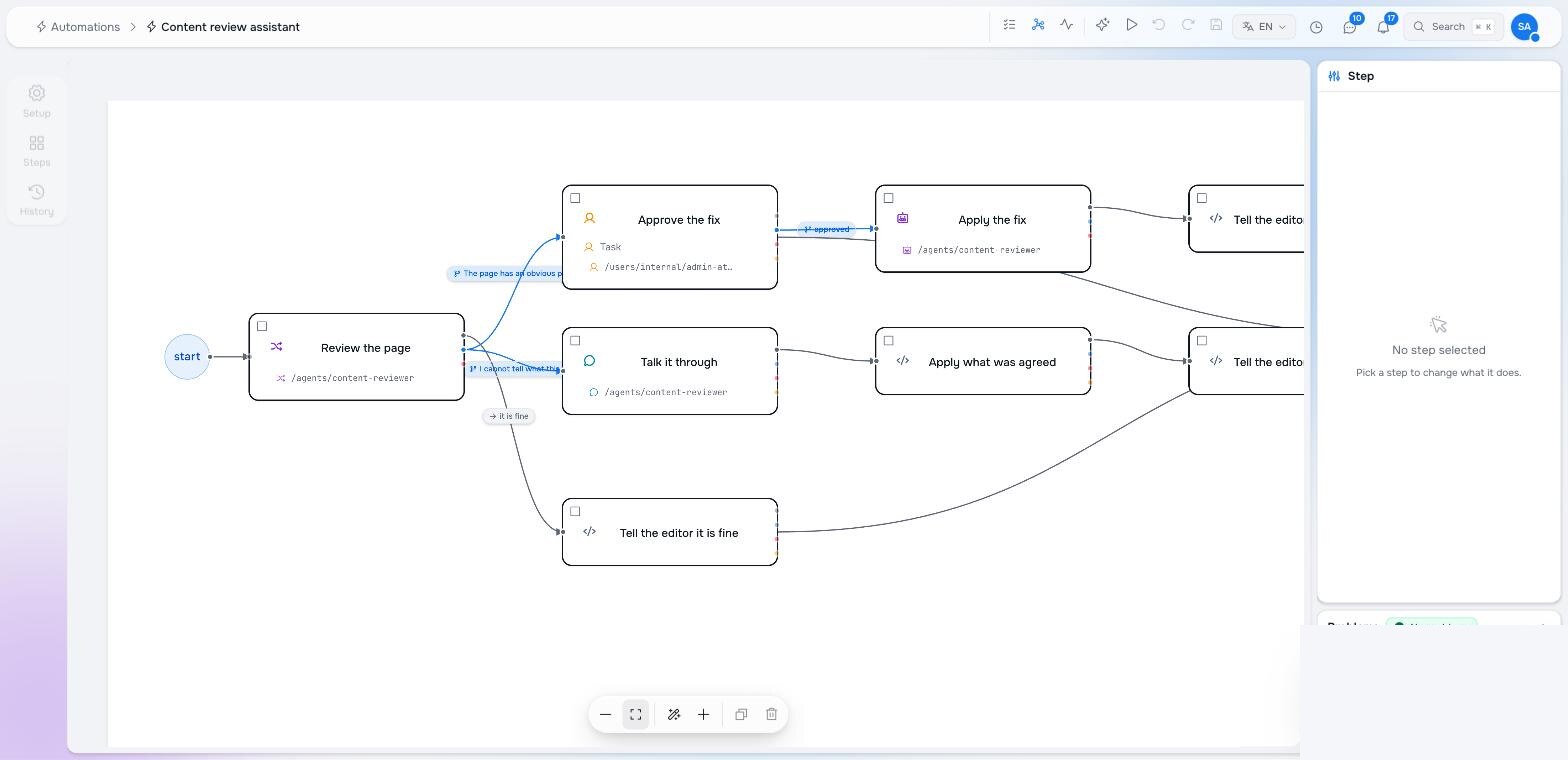
You can draw these pieces yourself or describe the outcome to Studio Builder. Builder creates the same normal automation, can delegate bounded tasks to specialist agents, and keeps content changes on review branches until you approve or reject them.
The trigger — when it runs
Every automation has exactly one trigger. Five kinds:
| Kind | Starts when |
|---|---|
| When something happens | A node is created, updated or deleted in a workspace — narrowed by node types, paths and property values. |
| Before or after a date | A date on the subject approaches or passes: three days before an event starts, a week after a contract is signed. |
| On a repeating schedule | A cron expression in a time zone. |
| When something calls this URL | An HTTPS request to a webhook address minted for this automation. The request body is the run’s input. |
| Only when I run it | Manually, from the editor, with a node of your choosing as subject. |
For the first kind, narrow as much as you can in the trigger: the workspace and node types are free, property filters and paths are matched before any run exists, and a condition on the automation only runs after a run has already started. On a busy mailbox that is the difference between one run per relevant mail and one run per synced message.
Four trigger details that matter in practice:
- A repeating schedule keeps its time zone, including on the two awkward
days. “Every weekday at 09:00 Europe/Zurich” is 08:00 UTC in January and
07:00 UTC in July, and Studio arms the next run at the instant that is
actually 09:00 where you are. On the spring morning when 02:30 does not
exist, a 02:30 rule runs at 03:30 rather than skipping the day; on the autumn
morning when 02:30 happens twice, it runs once, at the first one. Leave the
time zone off and the expression means UTC — never the server’s clock. A
fixed offset like
+02:00is refused rather than accepted: it is right for half the year, and only a named zone carries the daylight-saving rules. - “Ten days before” keeps the time of day, not a fixed number of hours. Counting back thirty days from 09:00 on a date in April lands on 09:00 in March, even though a daylight-saving change sits between them and the two are not 720 hours apart.
- Paths use globs and
**crosses folders./support-desk/mail/inbox/**matches a mail in any subfolder;/support-desk/mail/inbox/*does not. The editor adds/**when you pick a folder. - Ignore changes made by automations keeps a run from starting because of a write that an agent, a flow or a trigger made. Switch it on whenever the automation edits the kind of node it watches.
The subject — what it is about
The run knows the node that started it as the subject. Everything about it is available to every step: its fields (by name, typed, from the node type’s schema), its path, its workspace and its type. On a manual run you choose the subject, which is how an automation is tested by hand with the same data it would see in production.
Steps — what it does
| Step | Use it for |
|---|---|
| Run a function | Calling one of the built-in library steps or a function from your package, with arguments filled from a form generated from the function’s input schema. |
| Ask an agent | A judgement: classify, summarise, draft. Three modes on the same step: let it choose what happens next (the agent picks one of the outgoing connections by its label), what it must return (a structured answer whose fields later steps read), let it work a tool loop (the agent calls functions until it is done). And ask several agents and let a referee pick. |
| Ask a person | An approval, a choice, a piece of information. A task with buttons in the assignee’s Inbox; the run waits for the answer. |
| Talk it through | A conversation between an agent and a person, ending in a structured result. |
| Call a URL | Any HTTPS endpoint, with a body built from the run’s variables. |
| Wait | A pause, a delay until a date, or a polling loop’s beat. |
Every step has a label — the sentence that appears on its card and in the run history. Write it as what the step does (“File the conversation”), not what it is.
Connections — how it flows
A connection from one step to another is one of four kinds:
| Kind | Followed when |
|---|---|
| Next | Always. Several next connections out of one step run in parallel. |
| If | Its condition is true. With an agent that chooses, the condition is the label the agent picked. |
| On error | The step failed. |
| On timeout | The step did not answer in time — a task past its deadline, a function that never reported back. |
With those four you draw every shape: a branch is several if connections; a join is several connections into one step; an error path is an on error connection; a loop is a connection back to an earlier step, with a condition such as visits.draft < 3 that ends it. The editor’s health panel tells you when a loop has no way out or when a failure path is missing a timeout.
Variables — how steps talk
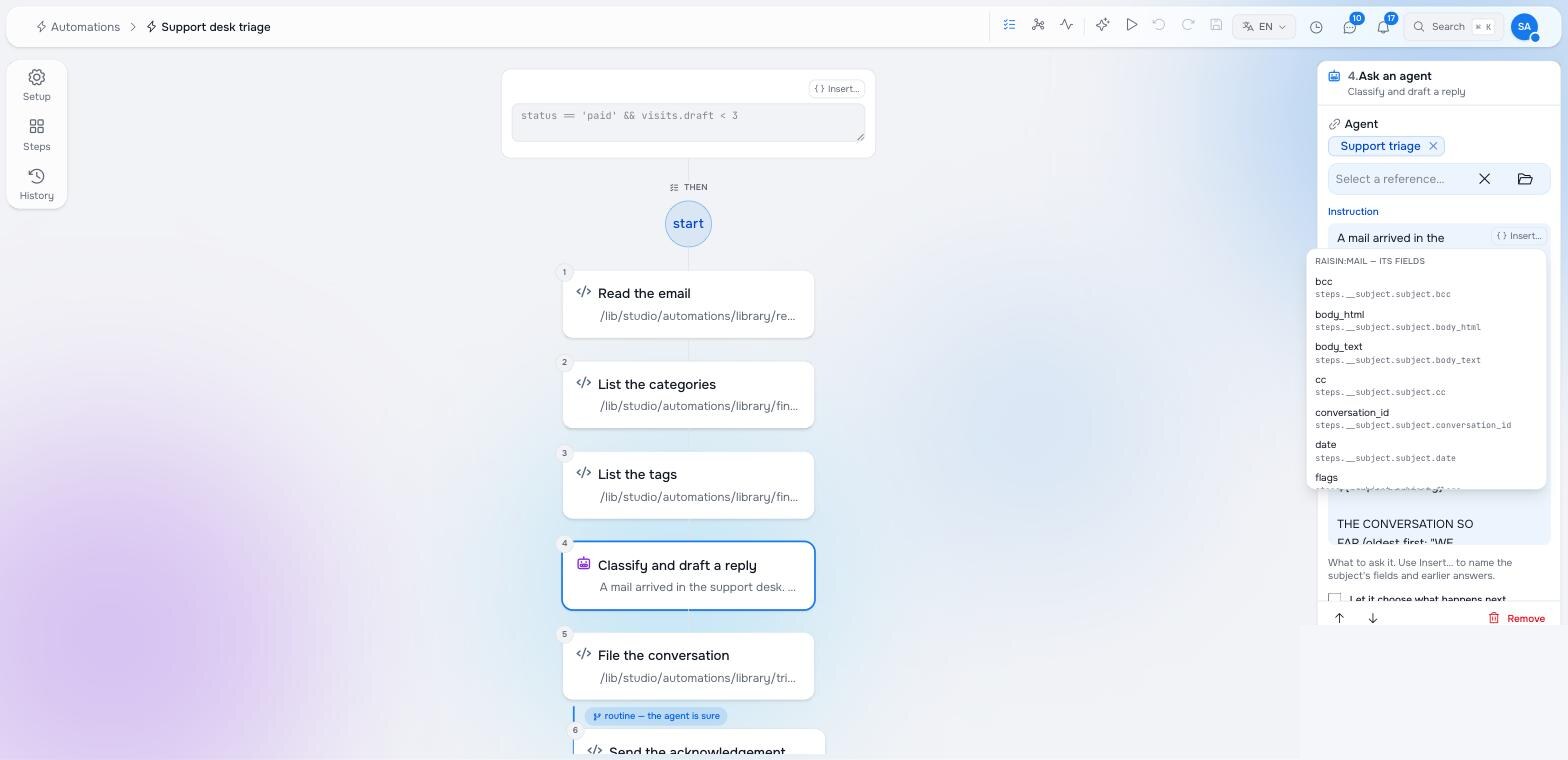
Later steps read earlier ones by name, in ${…} templates and in conditions. You do not type these paths: every text field has an Insert… menu that lists what is available at that point — the subject’s fields, each earlier step’s outputs with their titles and types, and the run’s counters. The Variables page lists the shapes.
People — where a run pauses
Ask a person and Talk it through both stop the run until someone acts. The task or the conversation appears in that person’s Inbox and in the notification bell; when they answer, the run continues on the connection matching their choice. A task can carry a deadline, and an on timeout connection says what happens when nobody answers.
Runs — what happened
Each start is a run: durable, restart-safe, and recorded. The editor’s History shows every version of the automation; a run’s steps, their inputs, outputs and errors are recorded on the run so a failed step can be read rather than guessed. A run that waits for a person can wait for days.
Where to next
- The automation editor — building one, click by click.
- Build automations by talking — plan, build, test and review with Studio Builder.
- Automations as YAML — shipping one in a package.
- AI agents in automations — routing, structured answers, tools, competition.
- People in the loop — tasks, conversations, the Inbox and notifications.
- Connectors and mounts — mail, files, lights and payments as nodes your automations can trigger on and write to.
- Payments with Stripe — an order paid, a refund settled, as triggers.
Pilot documentation. Studio is in a partner pilot. Screens and YAML shown here are current as of the version noted on each page; tell your Maravilla contact when something does not match what you see.