Build automations by talking
Studio Builder turns a request in ordinary language into a working Studio automation. You describe the outcome; Builder asks for the decisions it cannot safely make, creates a plan, builds the required pieces, tests them, and shows you what needs approval.
Open Builder from the floating sparkle button. The window follows you around Studio, so you can inspect content, agents, automations and run history without losing the conversation.
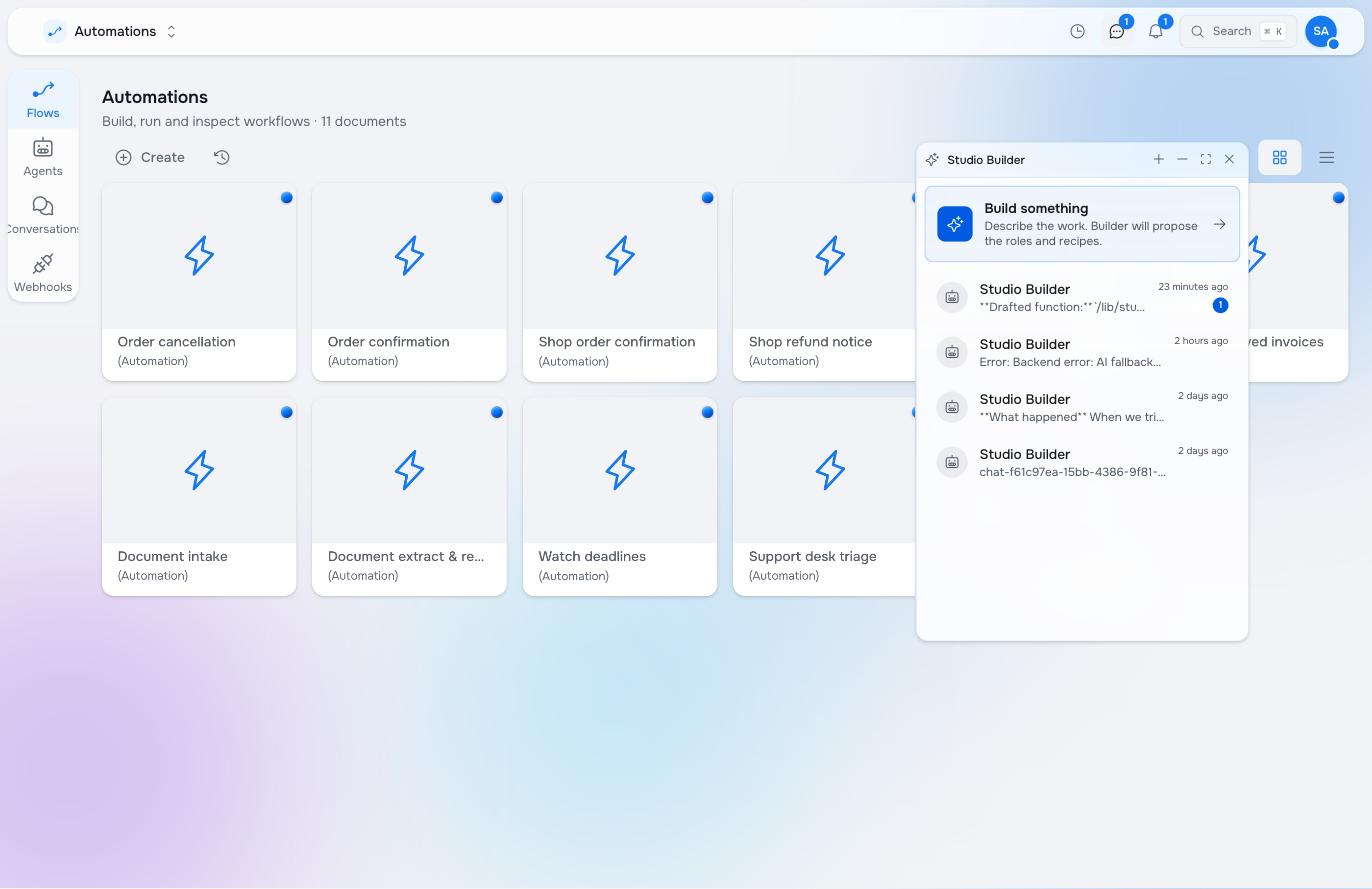
Start with the outcome
Describe what should happen, what data it concerns, and where a person must decide. You do not need to know function schemas or flow YAML.
When an article is saved, check whether its title starts with an emoji. If it does not, ask an agent for a suitable emoji, update the title, and let an editor review the change before it becomes live.
Builder may ask which article type, workspace, folder or owner you mean. When a safe default exists, you can tell it to use the default.
It then says what it intends to create, in the vocabulary of the thing rather than the schema, and waits.
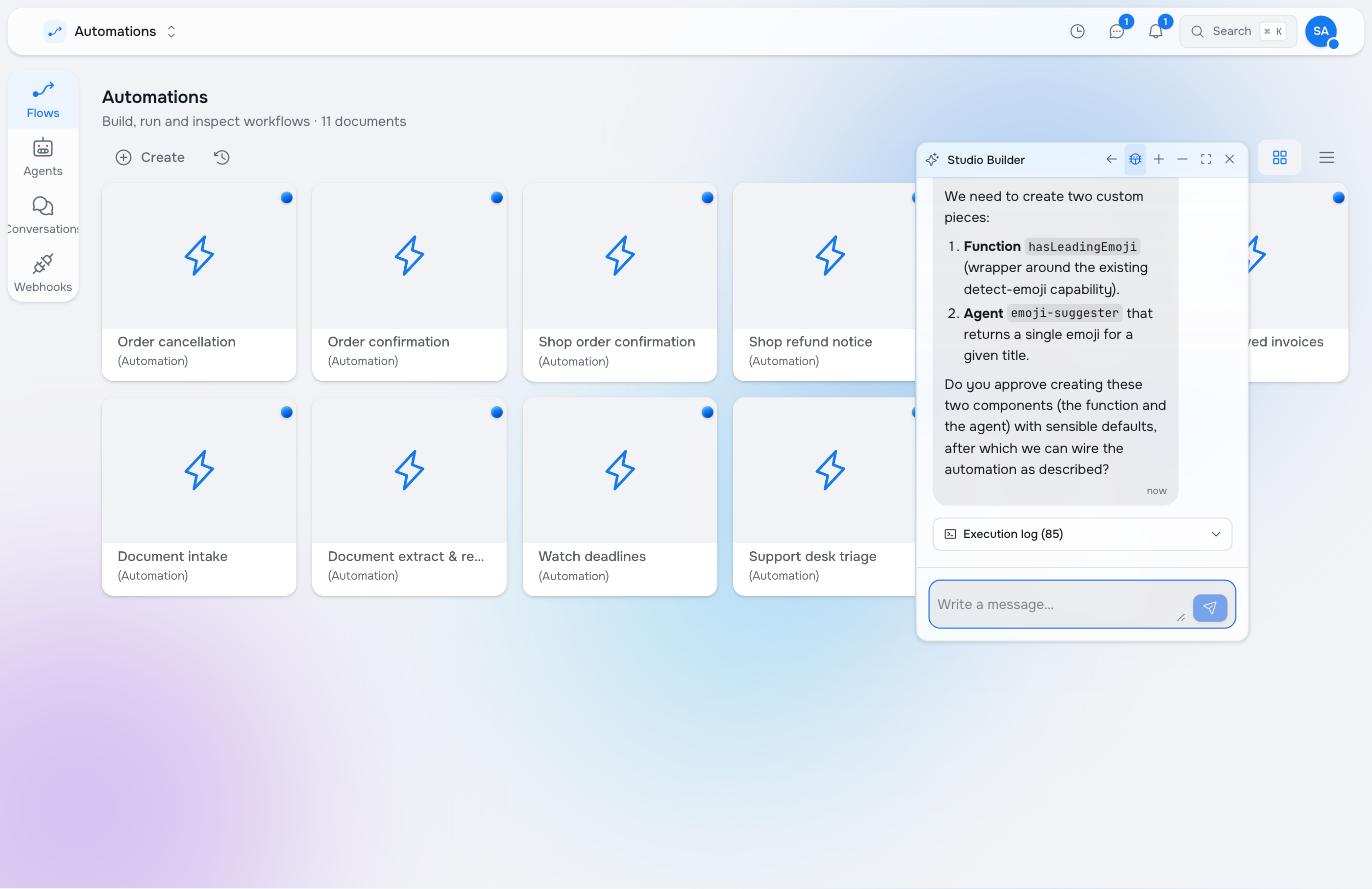
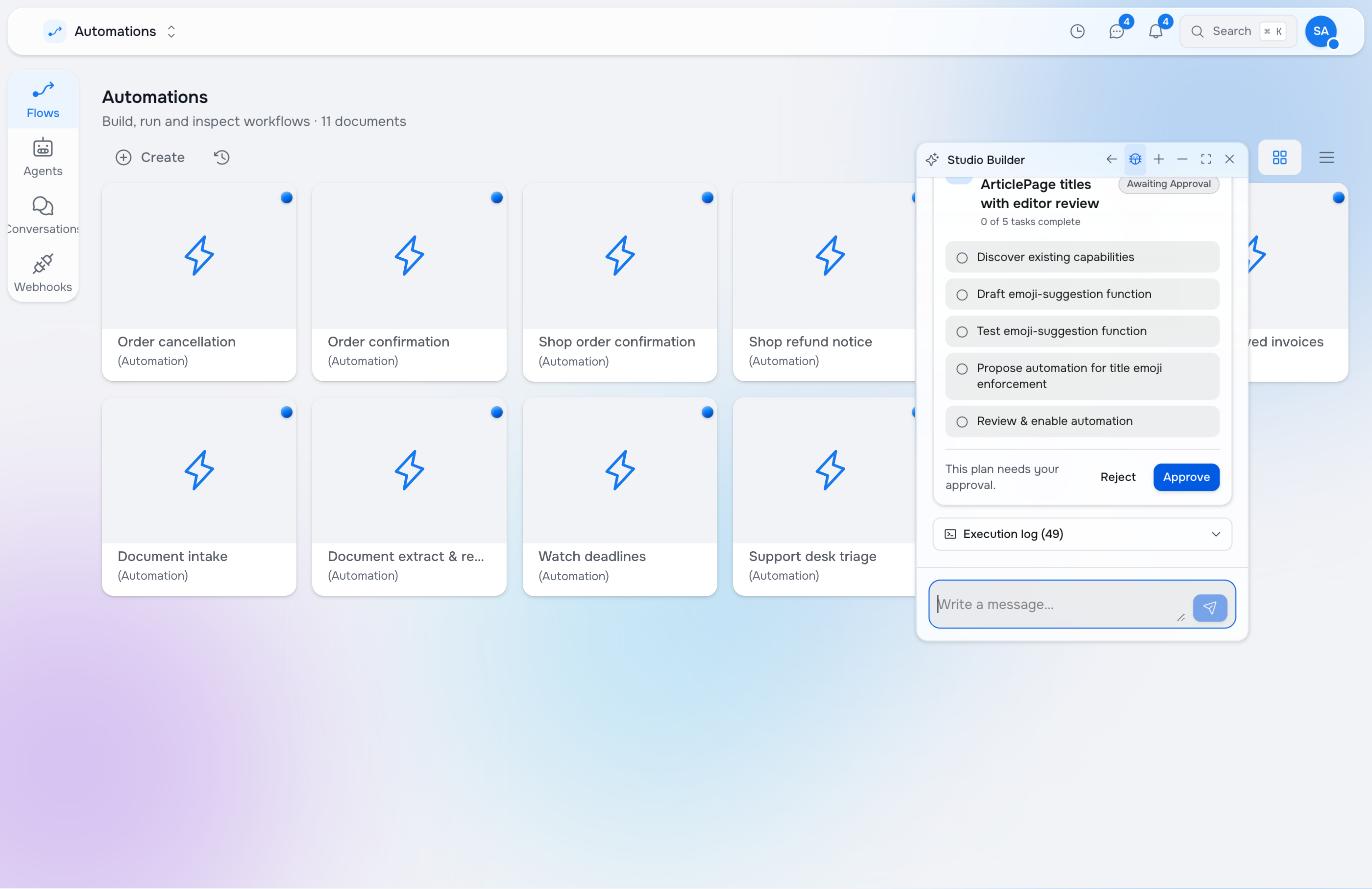
The plan appears in the conversation as tasks, each with its own state. Nothing runs until you approve it.
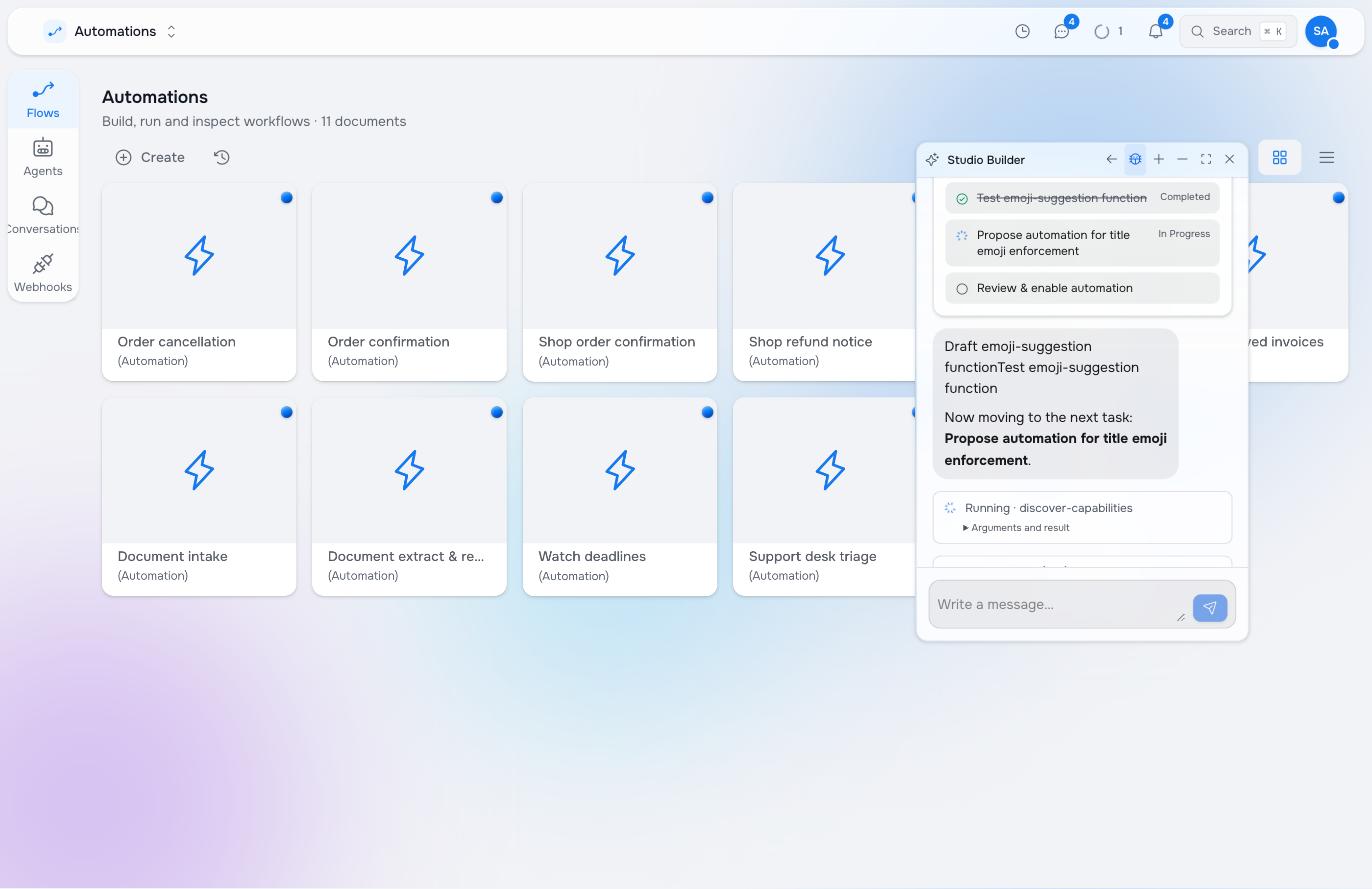
Once approved, the tasks tick over one at a time. The tool it is running is named as it runs, and each call can be expanded to its arguments and result.
At the end Builder summarises what exists now and what it did not do — here the automation is compiled but left disabled, which is the state every new automation starts in.
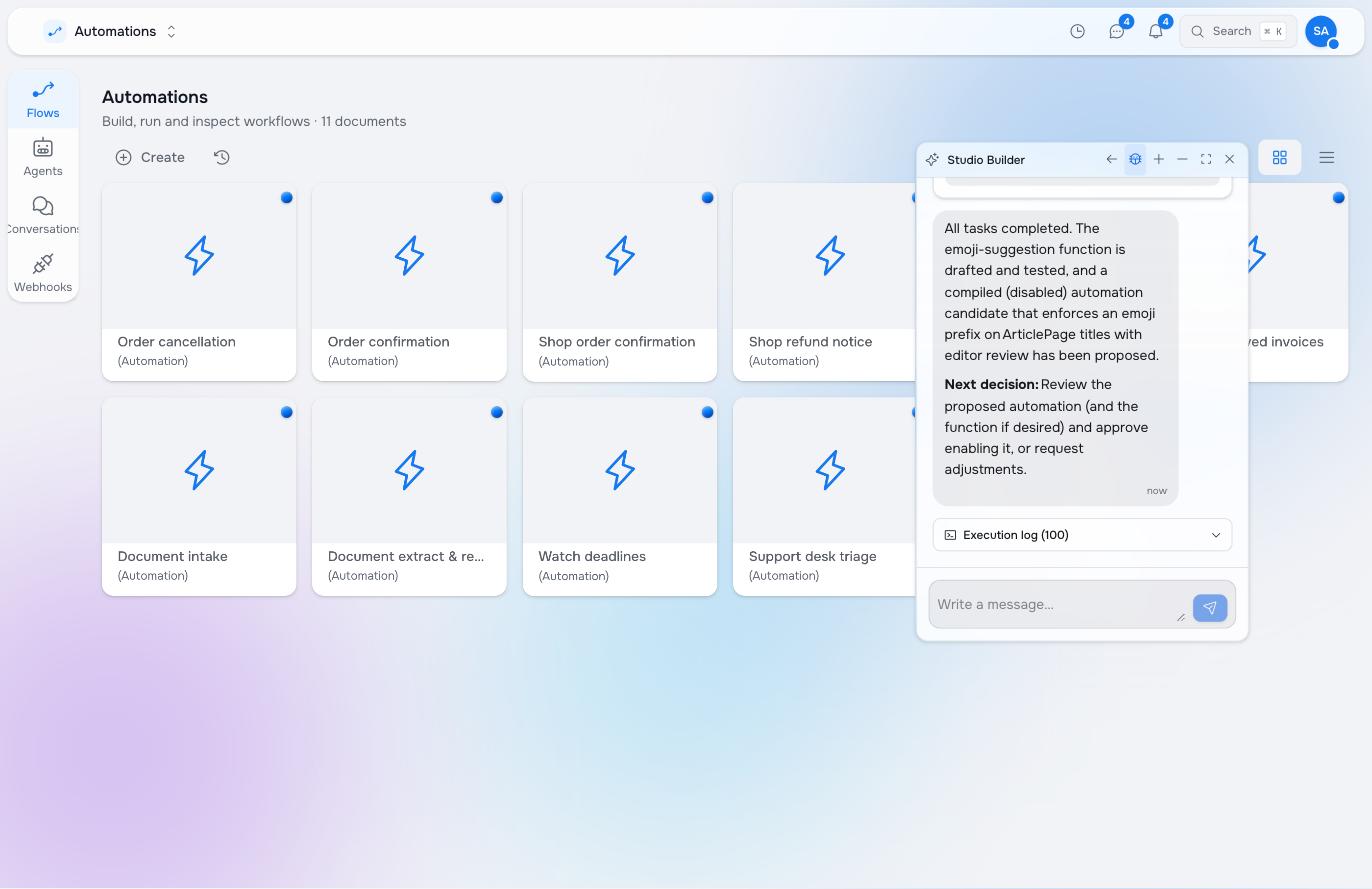
What Builder can make
- Functions for deterministic work such as finding nodes, checking fields or updating content.
- Agents when a reusable role needs judgement, instructions and a controlled set of tools.
- Automations that connect an event, schedule or manual start to functions, agents and people.
- Skills that teach one agent step a procedure only this automation needs.
- Tests and trial runs so the result is exercised before Builder calls it finished.
Builder reuses existing functions and agents when they fit. It creates another durable agent only when you ask for a reusable role, not simply because one task needs doing.
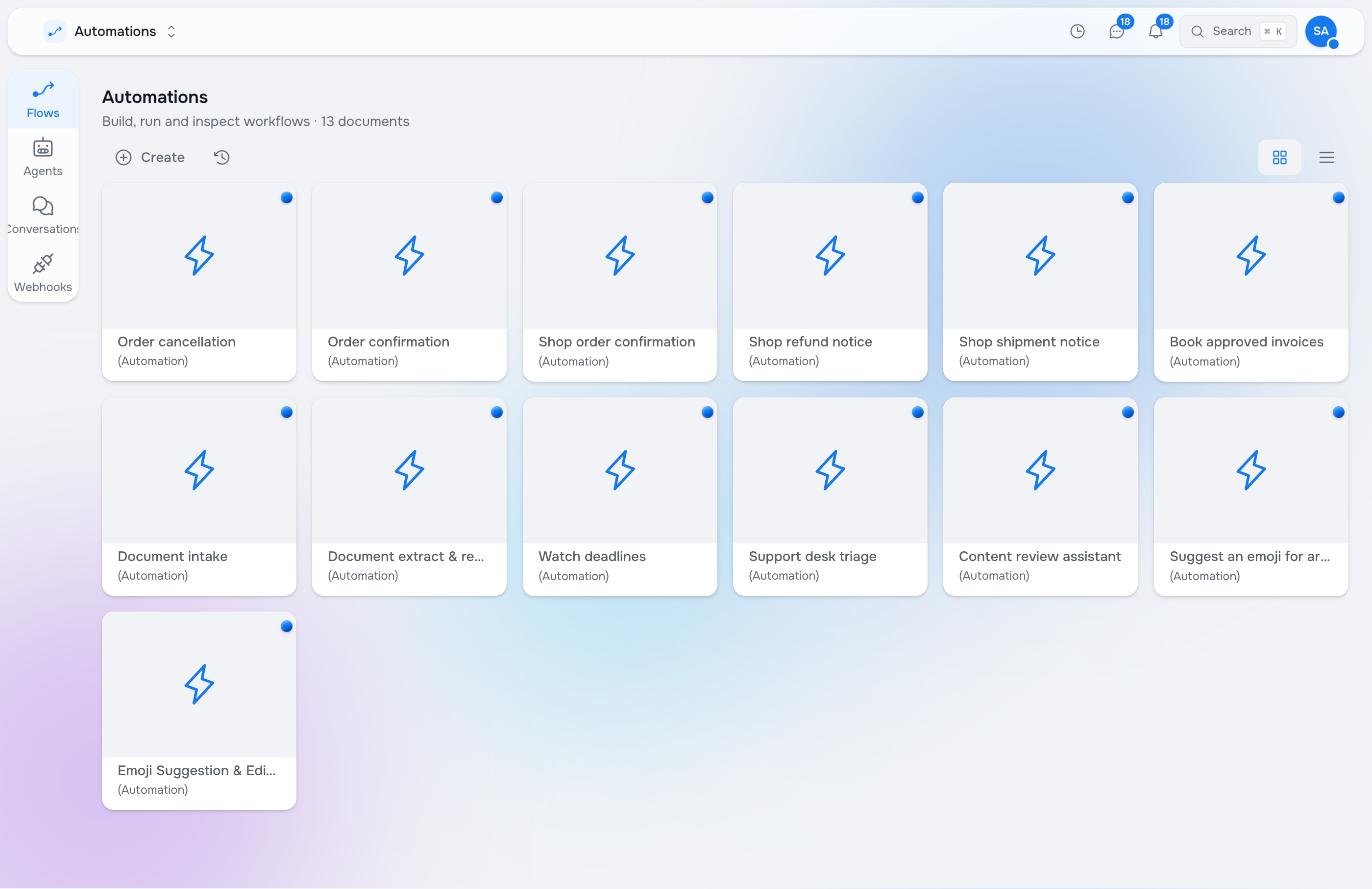
What it makes is ordinary Studio content. The automation appears in the Automations list beside the ones you wrote by hand:
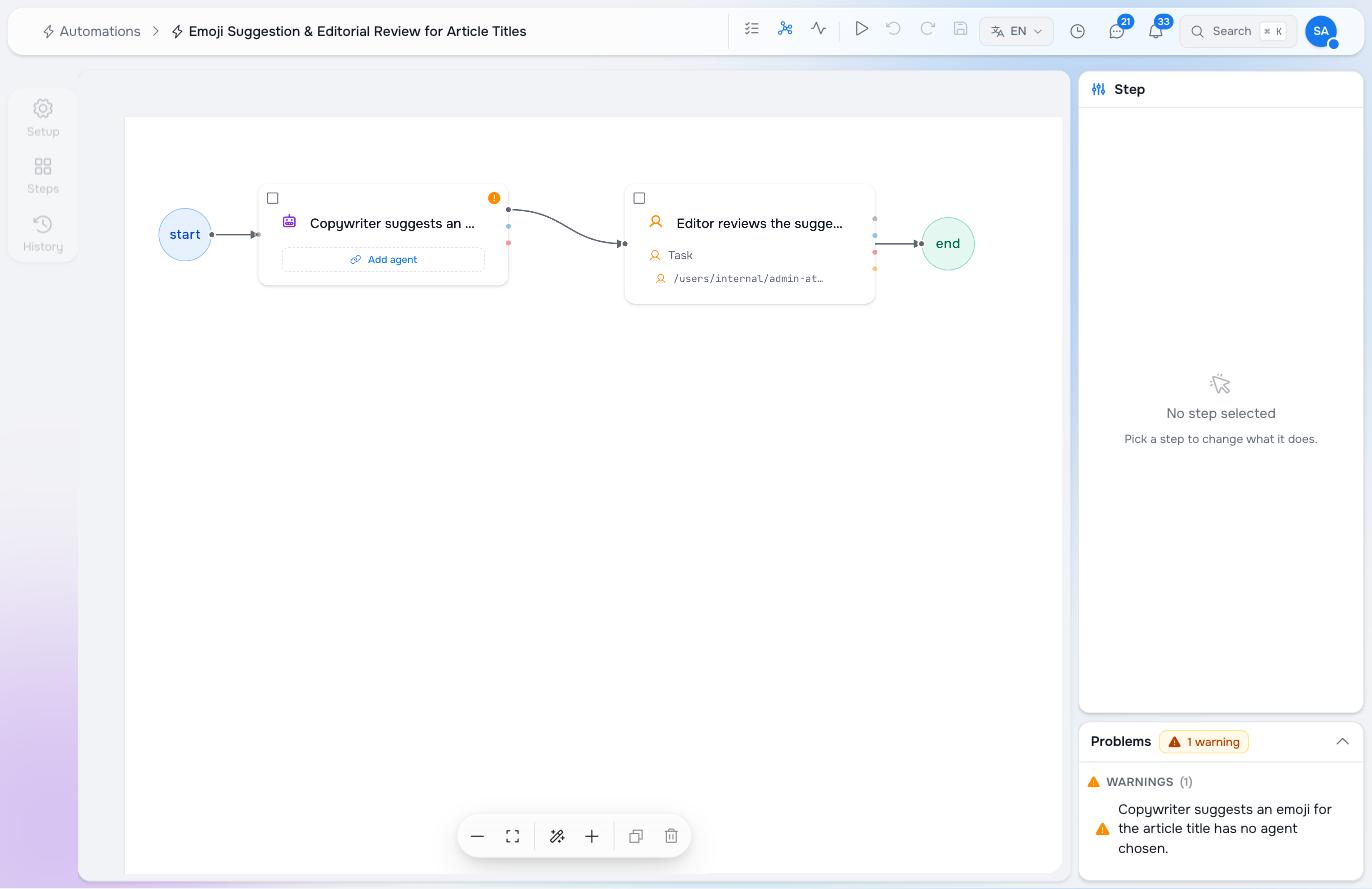
…and opens in the same editor, with the same problem checks. Here the flow runs start → agent → editor task → end, and the editor points out that the agent step has no agent chosen yet:
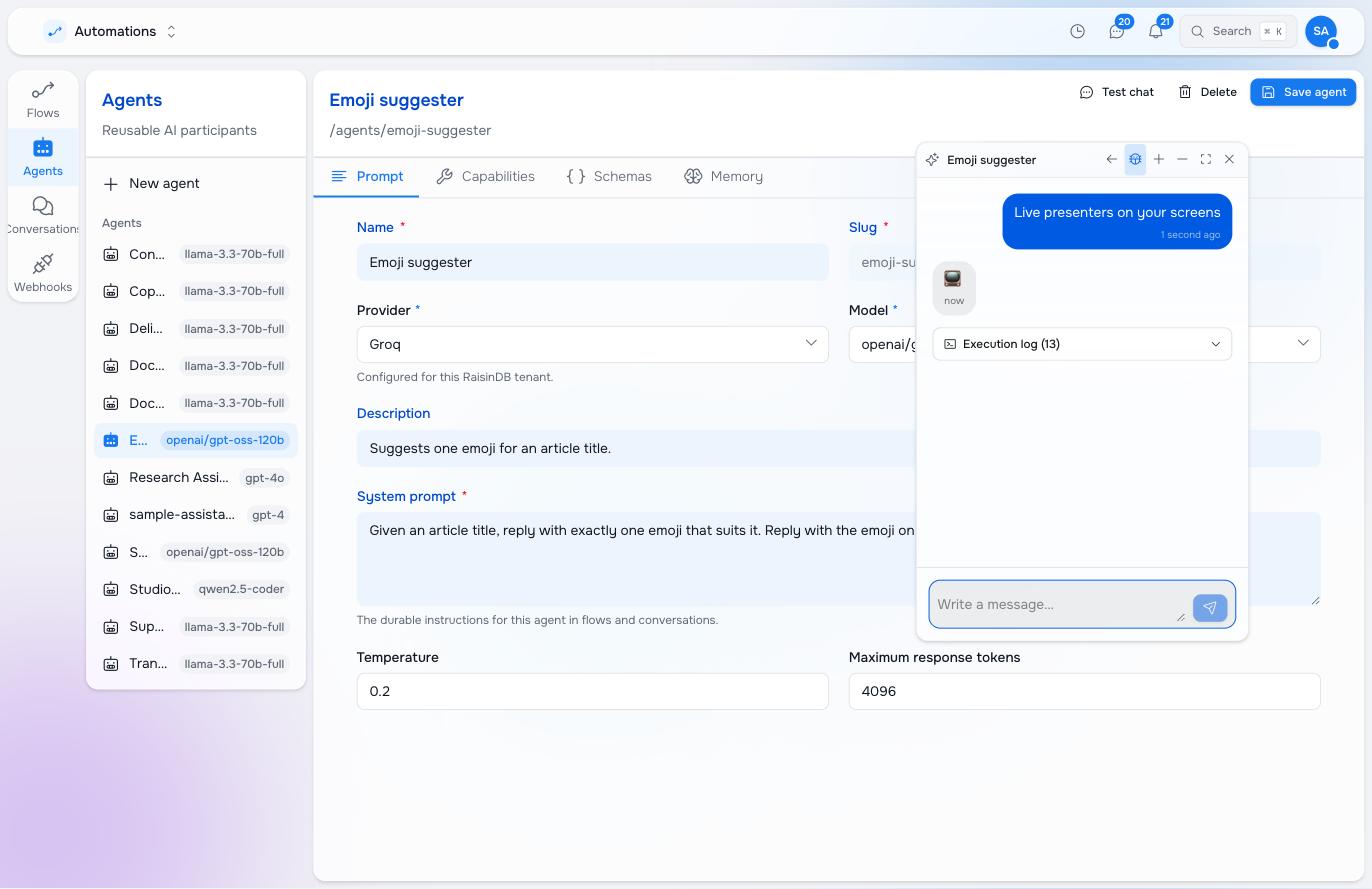
An agent Builder creates is a real agent: it has a prompt, a model, schemas and a test chat you can use straight away.
Review, stop and redirect
Builder asks you to approve the exact change it is about to make. If it revises that change, for example after you ask for something extra, it asks again. An earlier approval never covers a later version.
While it works you can Stop it, Pause and Resume it, or send a direction. The direction is shown as queued until Builder reads it at the next safe point. A panel beside the conversation lists each piece it built, where that piece lives, and the proof that it works. Build apps and automations with Builder covers these controls in detail, as well as building whole apps.
When it cannot do something
Builder reports what happened rather than what you hoped for. Asked directly whether an automation exists, it answers from the tool result — including when the answer is no, and why:
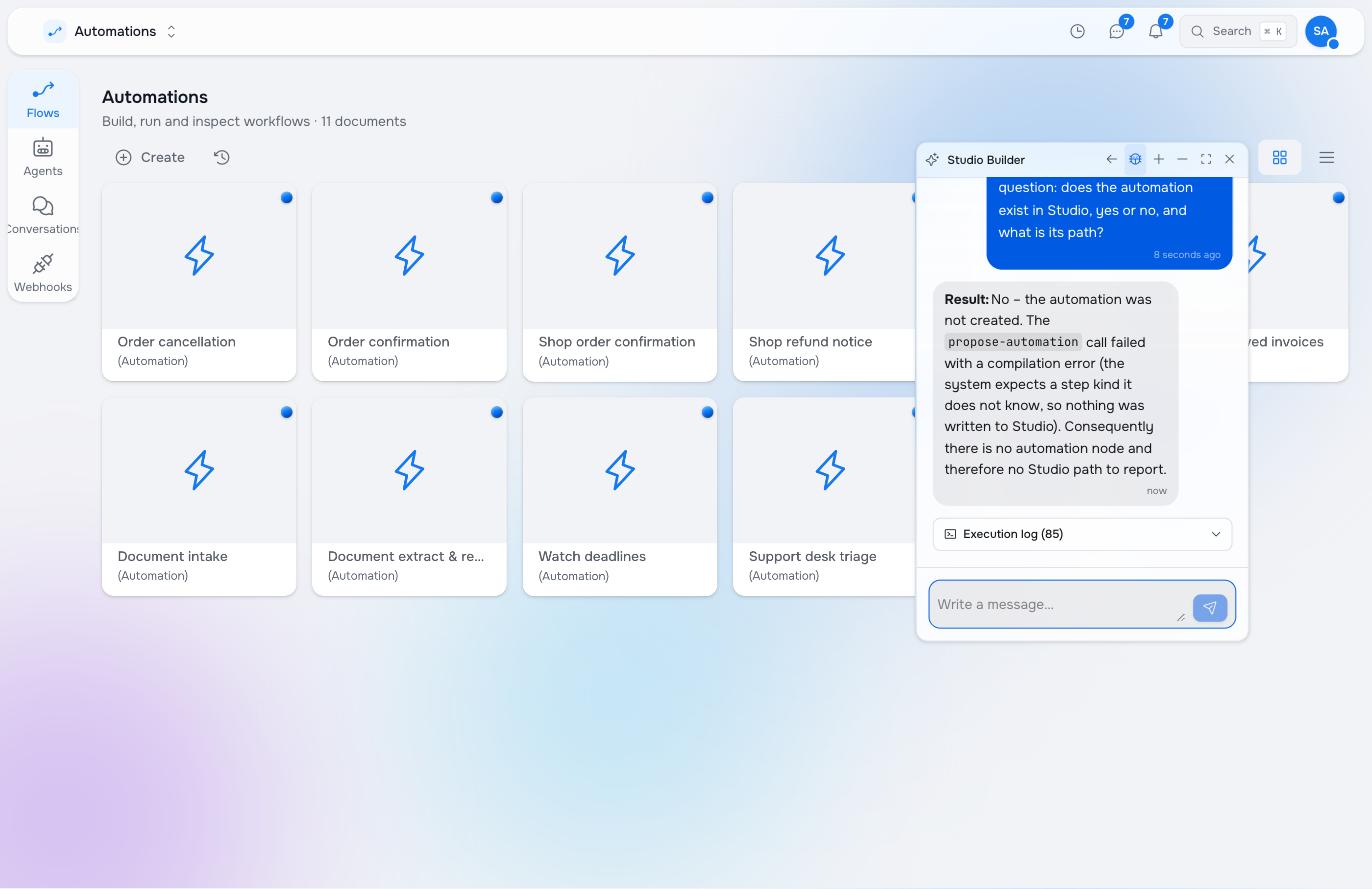
This matters more than it sounds. A tool that returns a proposal and a tool that writes a node look alike in a transcript, and an assistant that confuses them will report a path that does not exist.
Errors and retries
Builder retries temporary failures. When a piece still fails its checks, Builder gets the exact problem and a limited number of attempts to fix it. If the same problem comes back, it stops and shows the error. It does not spin forever or claim success. If it catches itself repeating a call without progressing, it stops and says so, naming the tool:
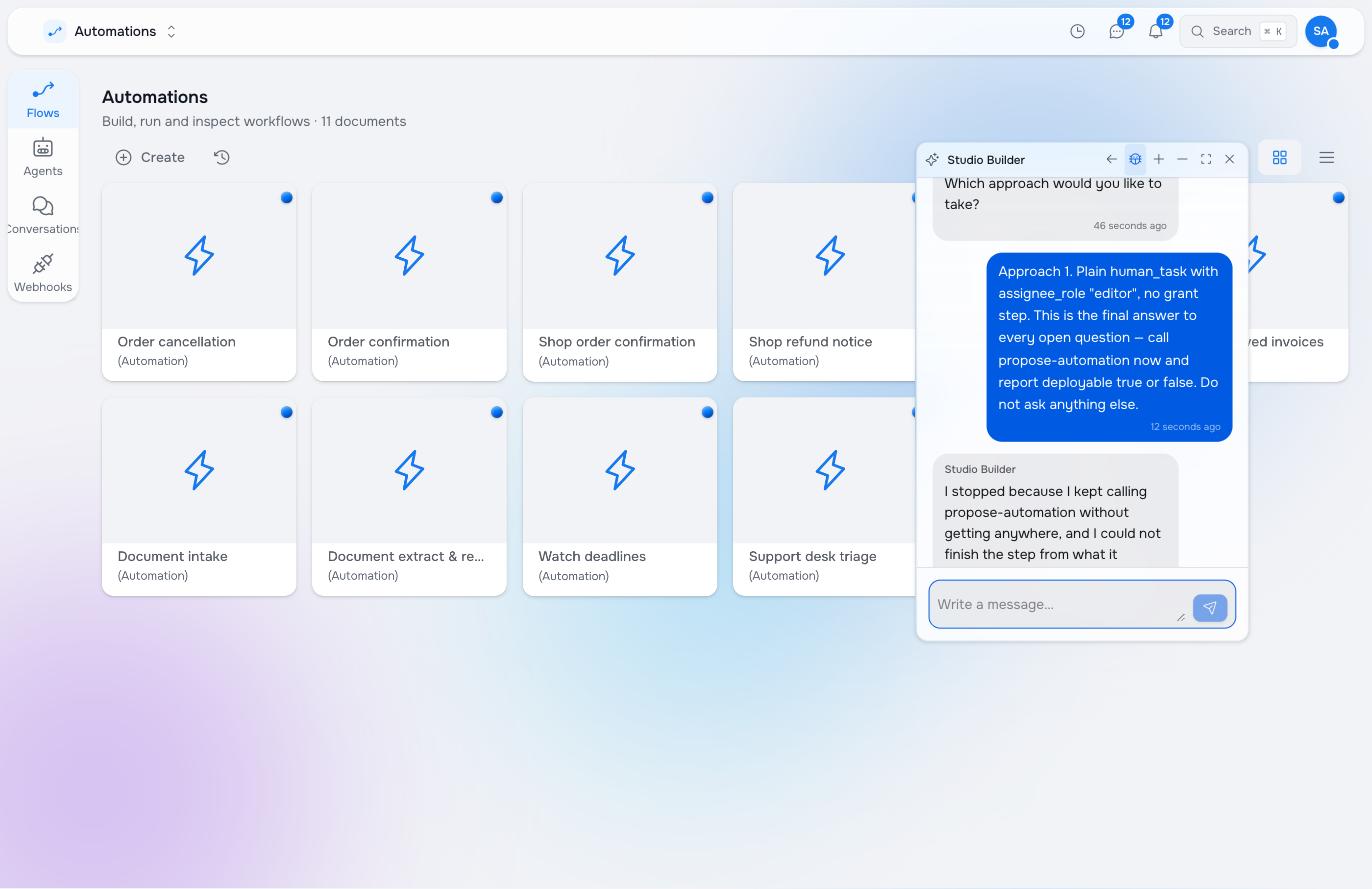
Ask Builder to inspect the failure, change the objective, or revise the generated function and run its test again.
A good request
The most useful request contains four things:
| Tell Builder | Example |
|---|---|
| When | When a standard article is saved. |
| Check | Its title does not already start with an emoji. |
| Do | Choose an emoji and prepend it to the existing title. |
| Ask first | Let the article owner review the proposed content change. |
You can refine the plan in the conversation before approving it. The result is still a normal Studio function, agent or automation: it appears in the same editors, has the same history, and can be maintained without Builder.
Where to go next
- Build apps and automations with Builder covers apps, approvals, steering and proof.
- Automations explains triggers, steps and runs.
- The automation editor shows the generated flow visually.
- AI agents in automations explains reusable agents and their tools.
- People in the loop covers approvals and Inbox tasks.
Pilot documentation. Studio is in a partner pilot. Screens and YAML shown here are current as of the version noted on each page; tell your Maravilla contact when something does not match what you see.