Build apps and automations with Builder
Studio Builder turns a need you describe in plain language into something that works in your Studio: an app for a new kind of record, a change to an app you already use, or an automation together with the functions, agents and instructions it relies on.
Everything it makes is an ordinary Studio piece: a record type with its editor, an app entry, an automation, a function, an agent, a skill. You can open each one in its usual editor, change it by hand, and keep using it without Builder.
Think of Builder as a coding agent for your content platform. It works the way a coding agent works on a codebase: it reads what exists, plans, builds, tests and repairs. Its codebase is your Studio: record types, apps, automations, AI agents and functions. It shows you the exact changes before anything is written, writes real code where exact logic is needed, and never touches anything outside the pieces you let it change.
Open Builder from the floating sparkle button, or pick up an earlier build under Automations → Conversations.
What you can ask for
| You need | Ask for | What Builder makes |
|---|---|---|
| A place to keep a new kind of thing | ”A CRM for our deals” | Record types, their editors, and an app of its own with list, board and calendar views |
| Records that belong with material you already have | ”Keep our recipes with their photos” | A typed container inside Assets: recipe books that can only hold recipes |
| A change to an app Studio ships | ”Add a review view to the Relations app” | A change in your installation’s own layer. The shipped app is not copied or edited |
| Work that should happen by itself | ”Triage incoming mail” | An automation, plus the functions, agents and step-specific instructions it needs |
| Rules for what authors may create | ”Only these templates under /blog” | A policy |
Builder reuses what already exists when it fits. It creates a new agent only when you want a reusable role. Procedure that only one automation needs becomes a skill granted to that one step, so a shared agent does not change everywhere else.
How a build goes
1. Builder looks before it proposes
Builder first reads what is already there: your workspaces, types, apps, agents and functions. It can only name a place it has actually read. It does not guess paths. When a decision is yours, such as whether deals get their own app or live inside an existing workspace, it asks and waits for your answer.
2. You approve one exact change
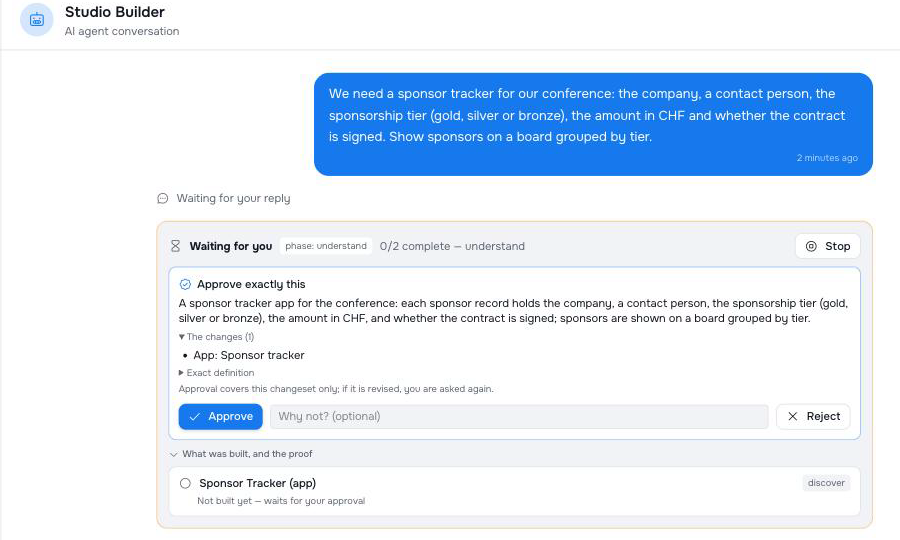
Builder then proposes the build: each piece, whether it is new, reused or changed, and what it depends on. Nothing is written until you approve.
The approval covers exactly the change you were shown. If Builder revises the build afterwards, for example because you asked for something extra, it asks again. An earlier approval never covers a later version.
3. It builds, checks and tests each piece
Builder works through the pieces in order. Each piece is written as a single change and then read back. If someone edits the same record between the proposal and the write, Builder does not overwrite that edit. It reads the record again and proposes again.
When a check fails, Builder gets the exact problem and another attempt at that piece. It has a small, fixed number of attempts for each piece and for the whole build. If the same problem comes back twice, it stops and asks you instead of trying the same thing again.
4. It finishes with what is true
At the end, the conversation says what exists, what was proven, and what is still yours to decide. That account comes from the run’s record, not from the agent’s own summary. A build that did not finish is reported as partial or blocked, not as done.
Stop it, pause it, redirect it
While a build runs, the panel above the message box shows its state: working, waiting for you, paused or finished. It also names the step that is running.
- Stop ends the build at once. Nothing new starts after you press it, and the conversation records how far it got.
- Pause keeps the build where it is. Resume carries on from the same point. A build that reaches its spending limit pauses rather than fails, so you decide whether it continues.
- Send a direction at any time. It is marked Queued until Builder reads it at the next safe point, then Read by the agent. You can see whether your correction arrived before the next step used it.
Studio confirms each control, or says why it was refused, so a button never just appears to work.
Proof for every part
Open What was built, and the proof to see one line per piece:
- where it now lives;
- the level of proof it needs and the level it has reached;
- the individual checks behind that, which you can expand;
- stale, if the piece changed after it was proven. Builder then checks it again before calling the build finished.
A piece counts as done only when its proof is current. What counts as proof depends on the kind of piece:
| Piece | Done means |
|---|---|
| App, app change, policy | Written, read back, and matching what was described |
| Automation | Compiled, checked, and run against a test sample |
| Function | Passes the test cases written for it |
| Agent | Saved with a typed output that other steps can rely on; exercised once a tested automation calls it |
| Skill | Granted to the one step that uses it |
What stays with a person
Builder builds and tests, but it does not switch things on. The panel lists what is left for a person:
- Enabling an automation. A new automation starts disabled.
- Arming a function that Builder drafted.
- Granting a role access to a newly created workspace.
Builder also works only where it is allowed to. It can write automations, agents, the functions it generates, your installation’s app layer and site policies. It never edits the definitions Studio ships. A change to a shipped app goes into your own layer and sits on top of the original.
”This is not possible yet”
Some requests cannot be built from the pieces Studio has today. In that case, Builder does not invent a feature or claim success. It shows a card headed Builder cannot build this yet, which lists:
- Missing: what Studio would need to have;
- Why: why the available tools are not enough;
- Proposed: the addition that would make it possible;
- Instead: a safe alternative, when there is one.
The gap is also saved as a record in your installation, so your team can follow up on it.
Under the hood
A durable run, not a chat. A build is a run that Studio keeps, not a conversation that disappears when you close the window. You can stop it, steer it with a new direction, pause it and resume it later. It survives a server restart and carries on from the step it was on, and it never writes the same change twice.
Approve exactly this. You approve one specific set of changes, the one you were shown. If Builder revises the build, even slightly, it asks again. An approval never stretches to cover something you did not see.
Evidence, not claims. A piece counts as done only when a check proves it: read back, compiled, run against a sample, or passed its tests. If the piece is edited after it was proven, that proof is marked stale, and Builder checks it again before it calls the build finished.
Honest limits. What cannot be built yet is recorded, not improvised. You are never stuck: build that part yourself the usual way, in your own project on your machine, as files for record types, page templates, functions and automations, and install it into Studio as a package. Once it is installed, Builder sees it and can build with it like anything else. See Workspaces, types and packages.
A worked example
You ask:
When a page title changes, have an AI agent pick a matching emoji and add it in front of the title. Ask me before changing it.
Builder gives you its own emoji-picking agent and a four-step automation:
- Pick the emoji. The agent reads the new title and chooses one emoji.
- You approve. A task arrives in your inbox with the proposed title.
- Apply the title. Once you approve, the page title is updated.
- Retry if applying fails. If the update does not go through, a task is created so that someone can retry it.
The automation starts switched off, and you switch it on yourself. After that, renaming a page to Team offsite in the mountains produced an approval for 🏔️ Team offsite in the mountains.
Examples
A small CRM.
A CRM for our deals. Each deal has a name, a stage (lead, qualified, won, lost), an amount and an expected close date. Show them as a board by stage and on a calendar by close date.
Builder proposes a deal record type, its editor, and a CRM app with a list, a board with one column per stage, and a calendar. After you approve, the app appears in the app switcher.
Records next to existing material.
Keep our recipes with their photos.
Recipes belong with images, so Builder proposes a recipe book container inside Assets that can only hold recipes. It does not create a separate app.
Changing an app you did not build.
Add a review view to the Relations app.
Builder reads the Relations app first, then proposes a change in your installation’s layer. The shipped Relations app stays as it is, and later updates to it still arrive.
An automation, redirected mid-way.
Triage incoming mail: tidy each message, let an agent sort it, and teach that agent our triage rules.
Builder proposes a formatting function, a triage agent, a triage skill granted only to that agent’s step, and the automation that connects them. While the proposal waits for approval, you add “Also lower-case the subject.” The direction shows as queued, then read. Builder revises the formatter, and you approve the revised build, not the first one. The automation ends tested and disabled, ready for you to enable.
A request Studio cannot fulfil.
Deploy my automations to our Kubernetes cluster.
Studio has no container deployment target, so Builder returns a cannot build this yet card that names what is missing and suggests an alternative. It does not report a deployment that never happened.
Where to go next
- Build automations by talking walks through an automation build step by step.
- Your own app explains the app definition Builder produces.
- Automations covers triggers, steps and runs.
- Building with AI is for building Studio packages from a coding assistant.
Pilot documentation. Studio is in a partner pilot. Screens and YAML shown here are current as of the version noted on each page; tell your Maravilla contact when something does not match what you see.