Studio on a Maravilla project
A site on the Maravilla platform does not need a separate Studio installation. One line in the project’s config makes maravilla dev bring up a local RaisinDB with the Studio package installed, an admin account, an API key for the site, and the Studio skills for your AI assistant. This page is what that line does, and what to run afterwards.
Enable it
// maravilla.config.ts
import { defineConfig } from '@maravilla-labs/platform/config';

export default defineConfig({
  studio: {
    enabled: true,
  },
  // …auth, database, …
});
That is the whole block most projects need. The optional keys, with their defaults:
| Key | Default | Meaning |
|---|---|---|
repository | studio | The RaisinDB repository the content lives in; also the name of the installed package. |
raisindbPort | 8080 | Where the local RaisinDB listens. |
raisindbVersion | unpinned | Pin a RaisinDB version; unpinned floats to the latest the CLI knows. |
rapUrl | Studio’s release bundle | Where the Studio package (.rap) is fetched from. Leave it unless told otherwise. |
skillsUrl | Studio’s skills bundle | Where the studio-* skills for your AI assistant come from. |
A malformed block is skipped with a warning, not an error — if maravilla dev never mentions Studio, check the block first.
The first maravilla dev
Start the project as usual:
maravilla devWith Studio enabled the dev server logs one extra line as soon as it boots, then works in the background so your app and the platform services are not held up:
Studio enabled — bringing up local raisindb (first run may take a while)…The first run does six things, in this order. Each is skipped on later runs when its result is already there.
- Installs RaisinDB with
npx @raisindb/cli server installinto~/.raisindb/bin, and starts it with its data under<project>/.maravilla/raisindb. RaisinDB runs once per machine: every Studio project on your laptop shares the same server on the same port, each with its own repository. - Checks the media plugin, the piece that renders thumbnails and page screenshots (the doctor, below).
- Installs the Studio package into the repository, or updates it when the published version is newer than the installed one, and opens CORS for the dev origins.
- Creates the admin member
admin@studio.localwith the package’sstudio_adminrole. - Writes an API key for server-side reads into the project’s
.envasRAISINDB_API_KEY. If the line already exists, nothing is minted. - Installs the
studio-*skills into.claude/skills/, so an assistant in this project knows Studio’s model, blocks and inline-editing contract.
When it is done:
Studio ready — open http://localhost:3001/ (raisindb on :8080)
  Studio login:  admin@studio.local / studio123!
  raisindb CLI:  raisindb login -s http://localhost:8080 -u admin -p 'Admin123456!'
  SSR access:    RAISINDB_API_KEY written to .env
Studio itself is served by the dev server on its own port, so http://localhost:3001/ (or whatever --port you chose) is the editor. The second login is RaisinDB’s own superadmin, for the raisindb CLI when you deploy your package. Both passwords are development defaults: the RaisinDB one is fixed by the CLI and only applies to a fresh data directory.
Every later maravilla dev
Nothing to remember. A healthy RaisinDB on the port is reused as it is, the package is left alone when its version matches, the .env key stays, and your content is where you left it in .maravilla/raisindb. Starting a second Studio project on the same machine reuses the same server and adds its repository.
Two things that are not automatic and are yours to run:
raisindb deploy ./acme-site --repo studio --install     # your own types and seed content
cd acme-site && raisindb sync . --push --force --yes --repo studio   # content you keep in the package
That is the same package workflow as anywhere else (Modelling a site); the local server is just another target. Sign the CLI in first with the raisindb login line the dev server printed.
Keeping it current
Studio ships often. maravilla dev checks the two load-bearing pieces on every start — the RaisinDB binary and the media plugin — and offers to update them when they are stale:
studio update needed — media plugin outdated
Update raisindb + media plugin now? [Y/n]
Say yes; it stops RaisinDB, installs, and starts it again. On a CI box it only warns. You can run the check yourself:
maravilla studio doctor          # read-only report
maravilla studio doctor --json   # for scripts
maravilla studio update          # apply
The doctor does not touch the Studio package or the skills. For those, and for the CLI itself and the @maravilla-labs/* dependencies, run the umbrella:
maravilla updateIt updates the CLI, offers the npm updates, refreshes the skills, and — on a Studio project — re-fetches the Studio package and the studio-* skills and reinstalls them, then runs the doctor. Run it after enabling Studio on an existing project, and whenever Studio announces a new version.
Known issue (CLI 0.21.8). maravilla studio doctor and maravilla studio update fail with “not a Studio project” on macOS when run against a relative path, because the config evaluator builds a file URL from .. Pass the absolute path until it is fixed: maravilla studio doctor "$PWD".
The site’s variables: local and live
The dev server gives your site exactly one variable, RAISINDB_API_KEY, in .env. The rest of the site’s configuration is yours, and it is the same set locally and in production — only the values differ:
| Variable | Locally | On Maravilla Cloud |
|---|---|---|
RAISIN_HTTP_URL | http://localhost:8080 | https://<tenant>.rdb.maravilla.cloud |
RAISINDB_API_KEY | written by maravilla dev | a key minted on the tenant |
RAISIN_LIVE_BRANCH | main | main, then publish once the site publishes |
STUDIO_PREVIEW_SECRET | any string | a random secret |
Locally they live in .env. On the cloud, set them once per environment with the CLI, and never commit them:
maravilla variable set RAISIN_HTTP_URL --env production
maravilla secret set RAISINDB_API_KEY --env production
maravilla secret set STUDIO_PREVIEW_SECRET --env production
maravilla env --env production          # show what a build will see
Where Studio finds your site is content, not a site variable: the story’s embed rule. Its base URL is written as "{env:PREVIEW_SERVER:-http://localhost:4321}" in the package, so the local install gets localhost and the tenant gets the deployed host — the value is supplied to the raisindb CLI when the package is deployed, not to the site. See Inline editing.
The MCP connector
An AI assistant can work in Studio directly — author pages, translate, publish — through the Studio MCP server. Its URL is at the bottom of Settings in Studio, with a copy button, one per connector:
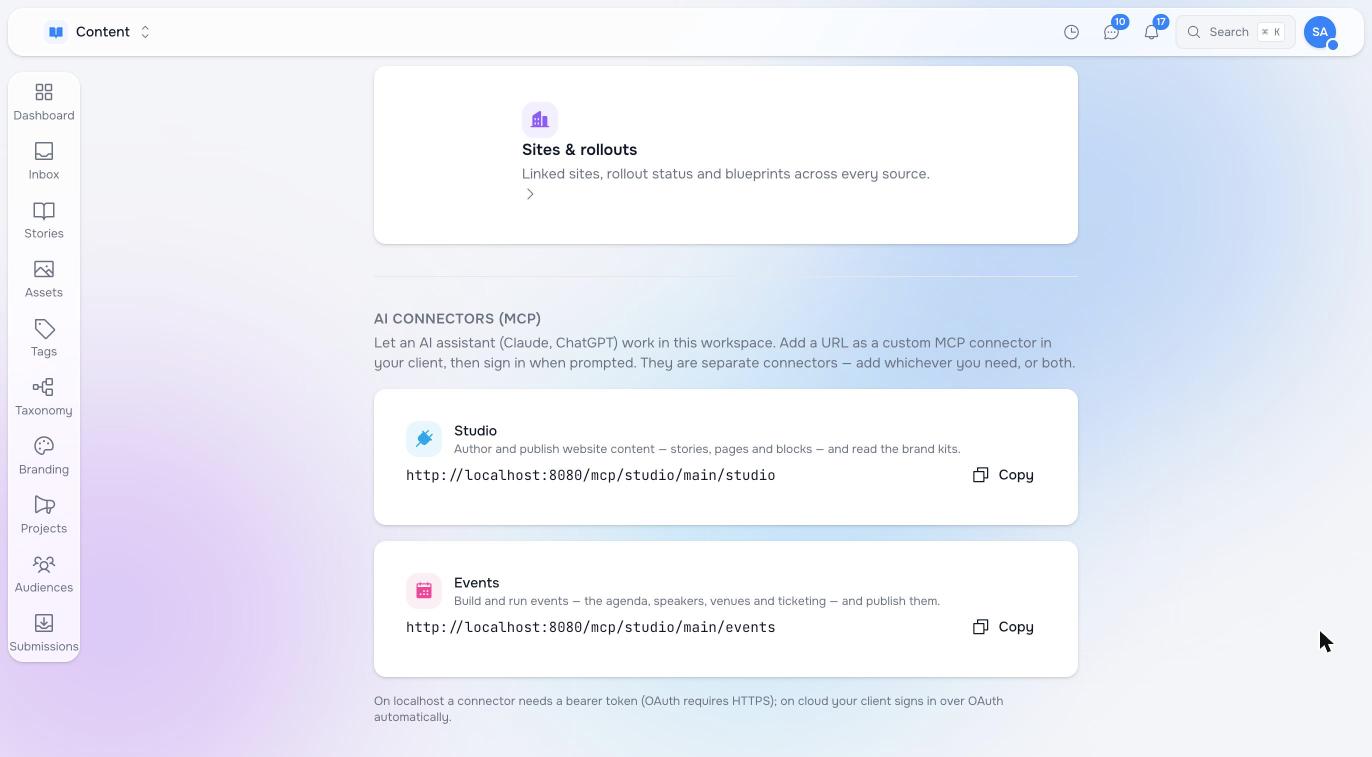
The URL has the shape <raisindb origin>/mcp/<repository>/main/<connector>: http://localhost:8080/mcp/studio/main/studio locally, https://<tenant>.rdb.maravilla.cloud/mcp/studio/main/studio on the cloud. Add it as a custom connector in Claude, ChatGPT or your IDE. On the cloud the client signs in over OAuth; on localhost, where OAuth is not available, give the connector a bearer token — the RAISINDB_API_KEY from .env works.
This is a different server from the Maravilla MCP server (maravilla mcp install), which gives an assistant the platform: the database, workflows, logs, and two Studio maintenance tools, studio_doctor and studio_update. Most projects install both.
Pilot documentation. Studio is in a partner pilot. Screens and YAML shown here are current as of the version noted on each page; tell your Maravilla contact when something does not match what you see.