Inline editing
The Studio editor does not render a preview of your site; it opens your site in an iframe and edits it in place. Three things make that work: a rule that tells Studio where the site runs, a session that lets the site show unpublished content to the editor only, and annotations in your HTML that tell the editor what each element is.
Embed rules: where the site runs
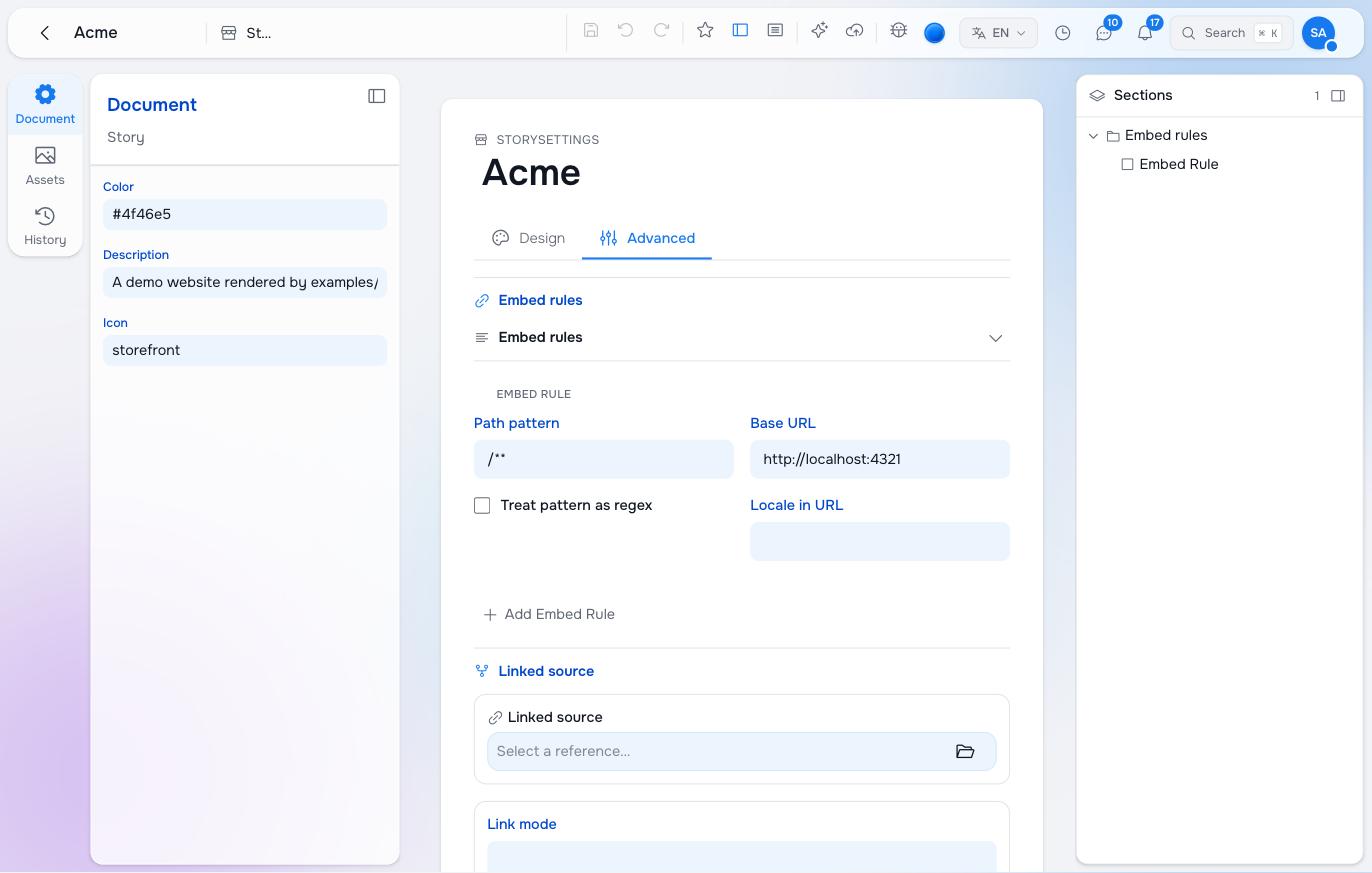
A story’s settings (Advanced → Embed rules) hold a list of rules. When an author opens a page, Studio finds the first rule whose pattern matches the page’s path under the story and loads base_url + the page’s URL path in the preview. No matching rule means no preview: the page opens as a plain form.
| Field | Meaning |
|---|---|
| Path pattern | A glob (/** for the whole story, /journal/** for a subtree) or a regex when Treat pattern as regex is on. |
| Base URL | Where that part of the site is served: http://localhost:4321 while developing, https://acme.example in production. |
| Locale in URL | How a non-default language reaches the site: prefix gives /de/about, query gives /about?lang=de, none leaves the URL alone. The default language is always bare. |
Rules are evaluated in order. The usual setup is one /** rule whose base URL is an environment token — "{env:PREVIEW_SERVER:-http://localhost:4321}" — so the same package yields localhost on a developer’s machine and the deployed host on the tenant, resolved by the CLI at deploy time (see Modelling a site). A rule can also split a site: /shop/** served by one app and /** by another.
In the package the rules live on the story node (see Modelling a site). Because the story is claimed by your .raisin-sync.yaml, a raisindb sync --push keeps the rules on every tenant in step with the file.
The domain is a separate setting on the story. It is what your renderer uses to find the story for a request (studio:Site maps a host to a story root), and it is what links and hreflang tags are built from. It is not used to open the preview; the embed rule is.
The preview session
A visitor reads the live branch. An author in the editor must see the working branch and their own unsaved draft — but the same URL, on the same server, must never show that to anyone else. So the editor never asks the site for the working branch directly. It asks Studio for a short-lived ticket, hands it to the site’s preview endpoint, and the site turns it into a signed cookie scoped to the iframe. From then on the middleware finds the session on every request and selects the working branch and the draft overlay; any request without the cookie reads the live branch, whatever its query string says.
The site needs two things: a secret (STUDIO_PREVIEW_SECRET, set with maravilla variable set in production) and the endpoint the adapter provides — studioPreviewRoutes in Astro, the equivalent handler in the other adapters. Rotate the secret and every open preview simply re-establishes itself on the next load.
The editor also passes ?studio-edit=1, which is a hint, not a permission: it turns annotations on and keeps variant wrappers in the DOM. It never selects a branch.
The annotations
Your components describe themselves to the editor with data-studio-* attributes. Render them always; they are inert for visitors and cost nothing.
| Attribute | Where | Purpose |
|---|---|---|
data-studio-root | The element that wraps the page’s content (<main id="studio-page">) | The editable region. The re-render after a structural change swaps this element. |
data-studio-id="{uuid}" + data-studio-type="standard:Hero" | The root element of every block | Selection, the block toolbar, drag handles. |
data-studio-field="headline" | An element showing one field’s value | Editing in place. Text and rich text become editable; a media field shows a picker. |
data-studio-doc-field="title" | A page-level field rendered on the page | Same, for the document rather than a block. |
data-studio-section="{uuid}" + data-studio-section-name="blocks" | A container block’s element that holds its nested blocks | A drop target for insert and move; the name is the SectionField the children live in. |
data-studio-drop="image" + data-studio-drop-accept="asset" | An inner element that is the precise target for a dropped asset or page | Sets that field on the block; see Drop targets below. |
data-studio-placeholder="Drop an image" | An empty editable field or drop slot | An author-only hint the editor shows in edit mode; it can never become content. Render such empty slots only when editing. |
A field that is rendered in two places carries the attribute in both; the editor keeps them in step. A field that is not rendered at all is still editable in the inspector.
Drop targets
The Media rail and the page tree are drag sources. Where a dragged thing may land, and what happens when it does, is two lines of content plus one attribute in your markup.
Into a section, between two blocks, a drop inserts a block. The page’s archetype says which block type each kind of source creates:
# on the page archetype (standard:HomePage, standard:ContentPage… or your own)
meta:
  editor:
    drop:
      asset: standard:Figure      # an image dropped into a section becomes a Figure
      page: standard:PageLink     # a page becomes a link block
The new block’s first media field (or reference field) is pre-filled with what was dropped. Without an entry for the source, the drop is refused; a section only offers the types its allowed_element_types lists.
Onto a block, a drop sets a field on that block instead. The element type says which:
# on the element type — standard:Hero ships exactly this
meta:
  editor:
    dropOnto:
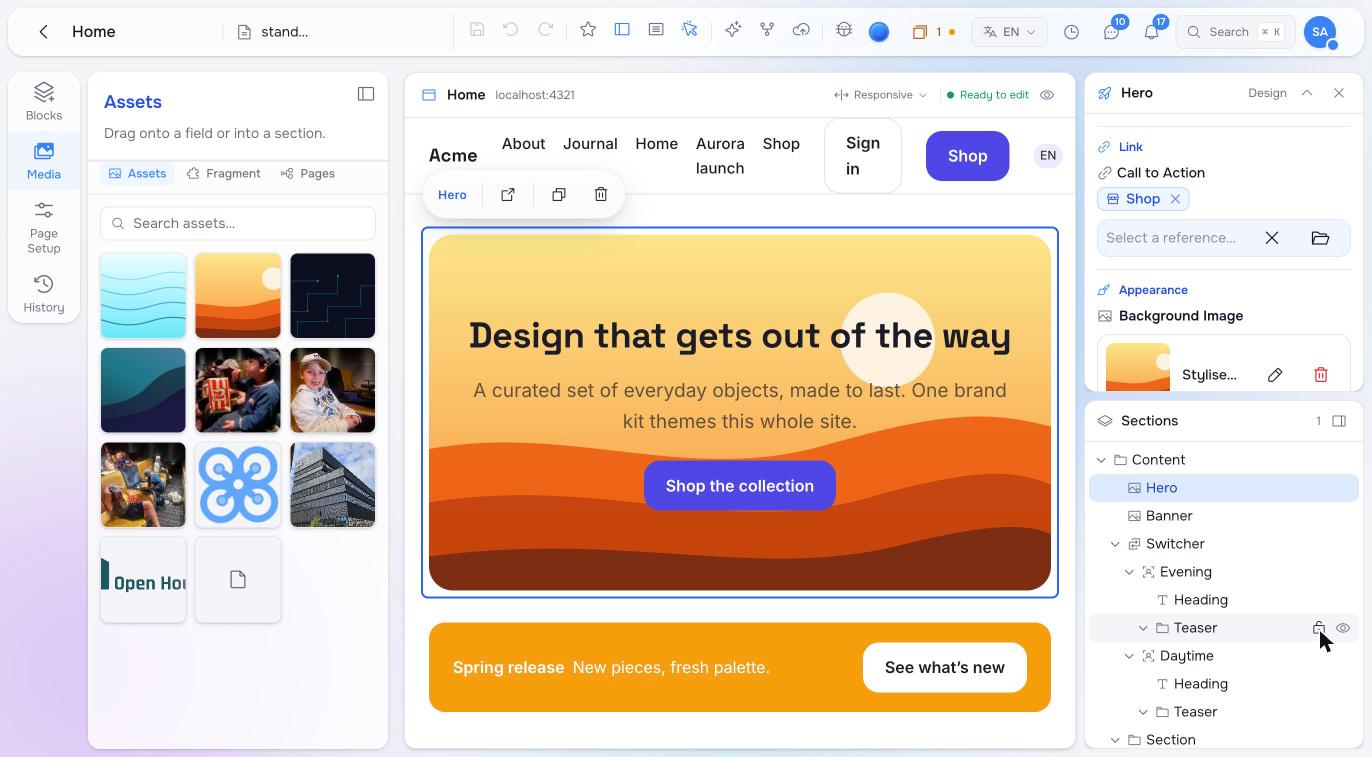
      asset: background_image     # an image dropped on a hero sets its background
      page: cta                   # a page dropped on it sets the call to action
A field that is multiple appends; a single field replaces. The target may be a dotted path into a nested group (cta.target).
Routing by media type: one surface, two fields
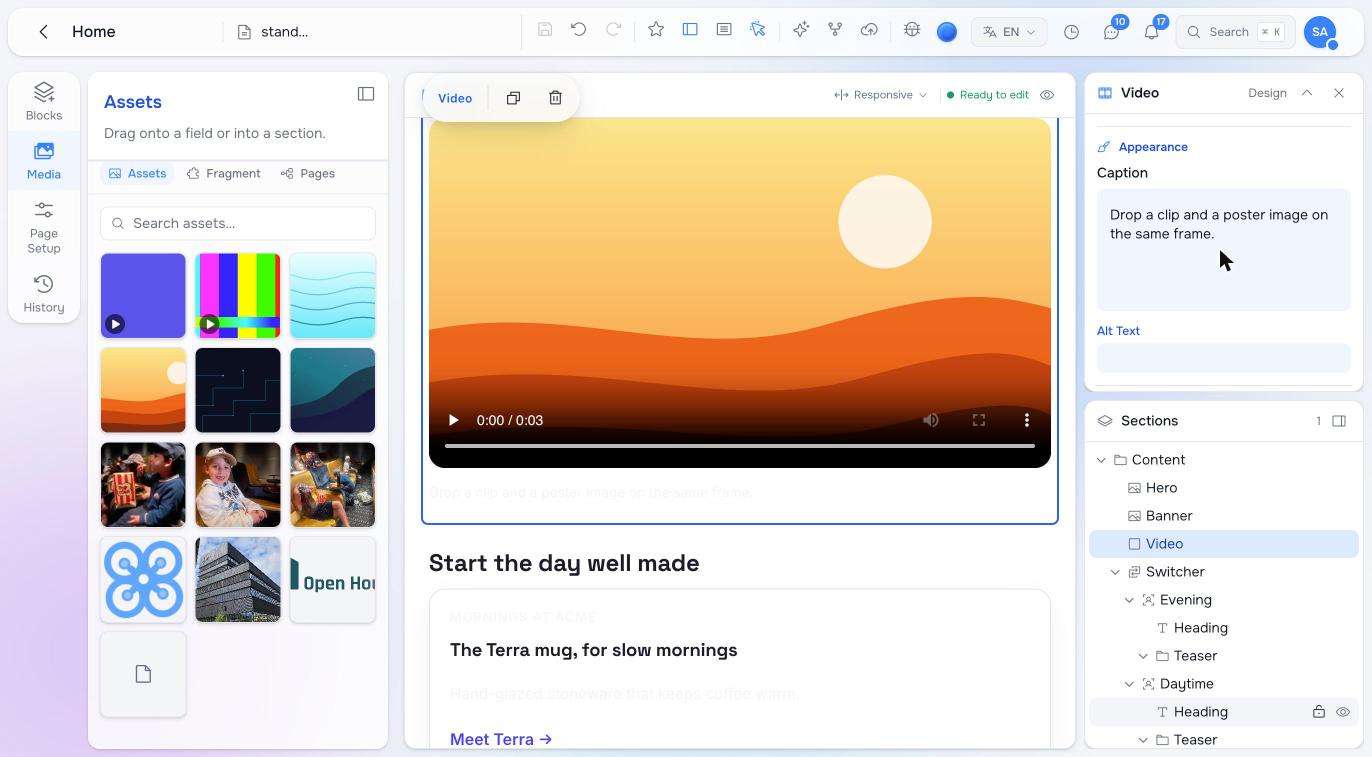
A video block has a clip and a poster image, and both live on the same rectangle — there is no second place to aim at. List both fields as candidates and let each field say what it accepts:
# standard:Video ships exactly this
fields:
  - $type: MediaField
    name: video
    meta: { accept: video/* }     # a mime pattern, or a kind: video | image | audio | doc
  - $type: MediaField
    name: poster
    meta: { accept: image/* }

meta:
  editor:
    dropOnto:
      asset: [video, poster]      # candidates, in order; the dragged file's type picks one
Drop a clip, the clip lands in video; drop a photo on the same pixels, it lands in poster. Candidates are tried in order and the first whose accept matches wins; a field with no accept is the catch-all. A file nothing accepts does not match the block at all — the drop falls through to whatever is behind rather than being misfiled. The same accept narrows the library picker and the upload dialog for that field, so it is one declaration for all three.
In the markup the frame names both candidates: data-studio-drop="video,poster".
Routing by node type: sources
Images come from the built-in asset source. Anything else an author should be able to drag — pages, tags, people — is a source the page archetype declares, keyed by a name of your choosing and limited to node types:
meta:
  editor:
    sources:
      page:   { kind: reference, allowed_types: [studio:Page] }
      tag:    { kind: reference, allowed_types: [studio:Tag] }
      author: { kind: reference, allowed_types: [acme:Author] }   # adds an "Authors" tab to the rail
    dropOnto:                       # on the ARCHETYPE: the page's own fields
      asset: hero.image
      tag: tags                     # `tags` is multiple → a drop appends
      author:
        field: authors
        unique: true                # an author already credited stops being a target while dragging
Each source becomes a tab in the Media rail listing nodes of those types, and the source key is what drop and dropOnto route on — so a tag can only ever land where a tag: rule allows it. On an archetype the rules target the document’s fields (a page’s tags, its hero image, its authors) and reach them only where the renderer marks a region with data-studio-drop, since there is deliberately no whole-page target that would swallow every drop meant for a section.
In the markup, the whole block is already the target once its type declares dropOnto. Mark an inner element to make the target precise — the picture inside a card, not the card:
<!-- the empty picture slot of a teaser: only an asset may land here, and it sets `image` -->
<div class="teaser__media" data-studio-drop="image" data-studio-drop-accept="asset"
     data-studio-placeholder="Drop an image"></div>

<!-- the button of a hero: a page dropped here sets `cta` -->
<a data-studio-field="cta_label" data-studio-drop="cta" data-studio-drop-accept="page">…</a>
data-studio-drop names the field (or a comma-separated list of candidates, or * for every rule the block declares); data-studio-drop-accept narrows the sources; an inner target wins over the block. The editor highlights the exact target while dragging and captions it with the field’s title, so an author sees Background image or Poster before releasing.
Empty slots are the reason for the editing flag: render the empty picture slot only while editing, with data-studio-placeholder on it, and a visitor never sees it.
Two ways to re-render
Editing a text field never re-renders; the editor patches the DOM and saves. Inserting, moving, deleting or duplicating a block does, because your component has to render the new structure. The adapter’s revalidate option chooses how:
fetch(default in Astro): re-request the current URL, parse it, replace#studio-page, tell the agent to reconcile. The page never flashes.reload: reload the iframe. Simplest; fine for a small site.- A function, in the SvelteKit and React adapters: invalidate your loader and let the framework re-render.
Whichever you pick, the re-render sees the author’s draft because the middleware overlays it on every read with a session.
What the editor is entitled to expect
- The page renders on the working branch with a session and on the live branch without one.
?lang=deand/de/...both select German (locale_modedecides which the editor sends).- A page that does not exist yet renders a page that still mounts the editor — the editor creates the node and re-renders; a hard 404 with no bridge leaves the author looking at an error.
?root=selects the story when the site is reached by a base URL that is not its domain (localhost).- Nothing on the page opens
alert,confirmorprompt; the iframe cannot show them.
Troubleshooting
| Symptom | Cause |
|---|---|
| The page opens as a form, no preview | No embed rule matches the path, or the story has no rules. |
| Preview shows the site but “Connecting…” never becomes “Ready to edit” | The bridge did not load: <StudioEditor /> (or studioEditor() / useStudioEditor()) is missing, or the editor’s origin is not allowed. |
| Preview shows published content, edits do not appear | The preview endpoint is missing or STUDIO_PREVIEW_SECRET differs from what the session was signed with. |
| Clicking a block selects nothing | The block’s root lacks data-studio-id / data-studio-type. |
| Insert works but the new block does not appear | revalidate failed: the re-fetch returned an error, or #studio-page is not the root. |
| An image dropped into a section does nothing | The page archetype has no meta.editor.drop.asset, or the section does not allow that block type. |
| An image dropped on a block lands on the wrong field | Several media fields and no meta.accept to route them; or the inner slot’s data-studio-drop names a field the type’s dropOnto does not. |
| A just-dropped image or link renders empty in the preview | The renderer overlays the draft without resolving its references. The Astro example’s resolveRawRefs is the fix. |
| German preview shows English | The renderer ignores ?lang=, or the field lacks translatable: true. |
Pilot documentation. Studio is in a partner pilot. Screens and YAML shown here are current as of the version noted on each page; tell your Maravilla contact when something does not match what you see.