Nodes, events and reactions
Three ideas explain how Studio fits together. Every later page is a detail of one of them.
1. Everything is a node
A page, an asset, a mail, a person, an order, a brand kit, an AI agent, an automation, a task in your Inbox — each is a node in RaisinDB. A node has:
- a path inside a workspace (
stories:/campaign/about,workplace:/support-desk/mail/inbox/…), which is also its identity in the UI; - a node type, which says what properties it can carry (
studio:Page,raisin:Mail,studio:MailThread); - often an archetype, which says how it is edited and rendered;
- properties: the actual data, typed by the node type;
- audit columns the engine maintains: created and updated timestamps, and who wrote it.
Nodes nest. An order’s attendees are children of the order; a mail’s attachments are raisin:Asset children of the mail. That hierarchy is how you find things: “the attachments of this mail” is “the children of this node”, not a search.
Data from outside is also nodes. A mount connects a Microsoft 365 mailbox, a calendar or a drive and materializes each message, event or file as an ordinary node under a mount path. Studio treats them like anything else; the only difference is that the mount owns them, so most of their properties are read-only and writes go back through the mount.
2. Every change is an event
When a node is created, updated or deleted, RaisinDB emits a node event carrying the workspace, the path, the node type and, for creates and updates, the whole node after the write. This is true for every writer: an editor saving a page, a function updating a record, an automation writing a task, a mount syncing a new mail. There is no quieter, second-class kind of change.
That is what makes the system composable. You do not integrate with “the mail connector” or “the editor”. You react to a raisin:Mail being created under the inbox path or a studio:Page being updated in the stories workspace, and it does not matter who caused it.
Consequence: an automation that writes the kind of node it reacts to would trigger itself. Studio gives you two guards for that — narrow the trigger with property filters that your own write cannot satisfy, or switch on Ignore changes made by automations so writes by agents, flows and triggers do not start a new run. Both are covered under Automations.
3. Automations react to events
A trigger subscribes to events: which workspace, which node types, under which paths, which kinds of change, optionally which property values. When a matching event happens, the engine starts a flow: a durable run of steps that can call functions, ask an AI agent, wait for a person, branch, loop and fan out. Runs survive restarts, can wait for days, and are recorded with every step’s input and output.
Steps are the vocabulary. The important ones:
| Step | What it does |
|---|---|
| Run a function | Calls a server function — one of the built-in library steps (send an email, read a mail, update a node, …) or one you ship in your package. |
| Ask an agent | Sends an instruction to an AI agent, with the option to have it choose the next branch, answer a structured question, or work a tool loop. |
| Ask a person | Puts a task in someone’s Inbox and waits for their answer. |
| Talk it through | Opens a conversation between an agent and a person and waits for its outcome. |
| Call a URL | An HTTPS request to another system. |
| Wait | Pauses for a duration or until a date. |
Steps are connected. A connection is followed always, only when a condition holds, or only when the step failed or timed out — that is how branches, joins, error paths and loops are drawn, and there is nothing else to learn: the same six step kinds and four connection kinds cover every shape.
Where people come in
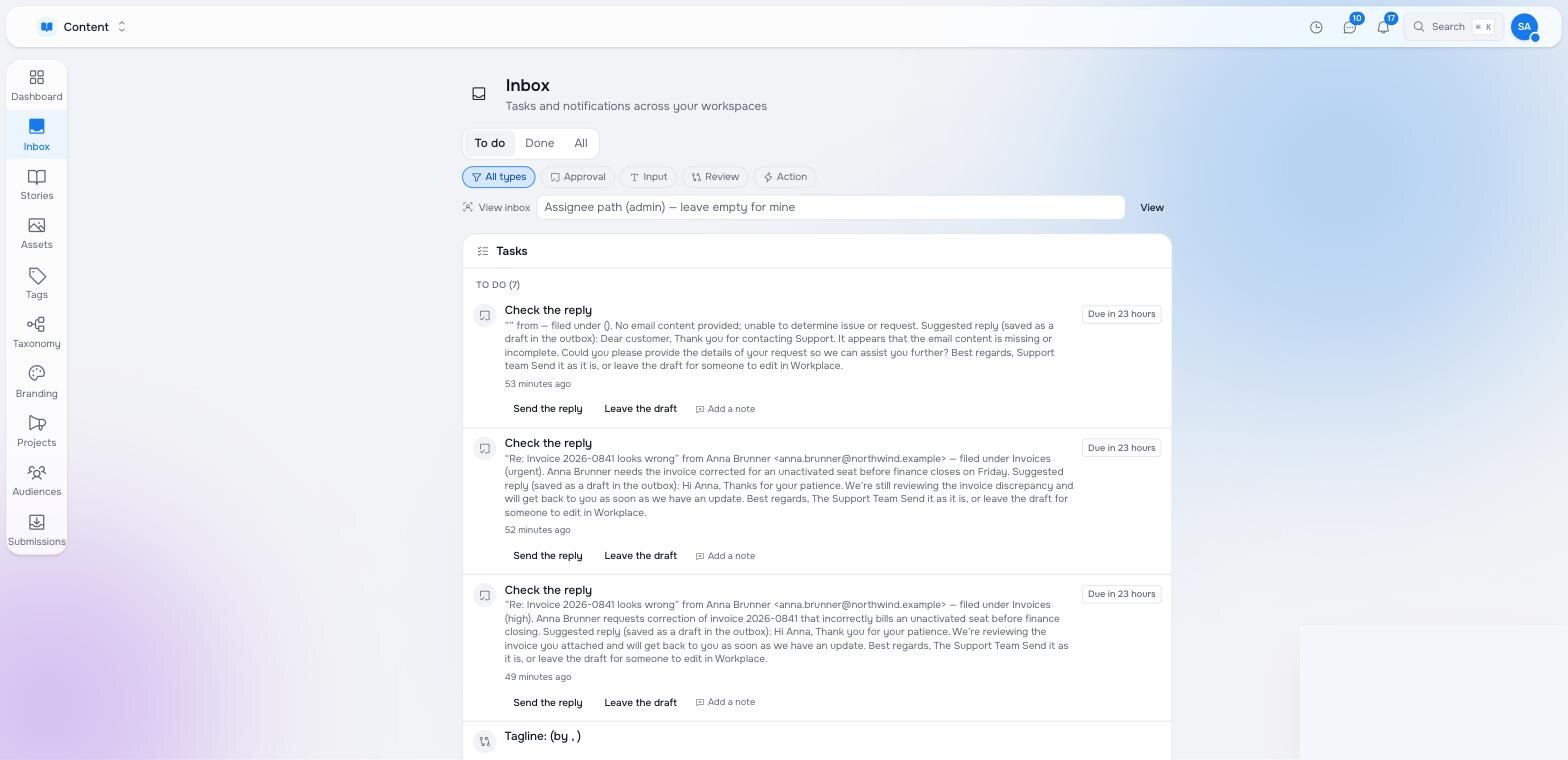
Automations are not only machine-to-machine. Two steps bring a person into a run, and both land in the same place:
- Ask a person creates a task in the assignee’s Inbox with the choices you defined. The run waits; the answer decides what happens next.
- Talk it through opens a conversation with an agent in the person’s Inbox. When the agent has what it needs it ends the conversation with a structured result the next steps read.
The Inbox is one place for everything that needs you: tasks from automations, approvals, conversations. The notification bell in the app bar shows what arrived while you were elsewhere and jumps to it. Both are described under People in the loop.
Where automations live
An automation is itself a node: studio:Automation, in the automations workspace. You can create it in the editor or ship it in a package as YAML — it is the same node either way. When it is saved, Studio compiles it into the engine’s flow definition and a trigger, and reports any problems back into the editor. The compiled flow is what runs; the automation node is what you edit.
That is the whole loop: nodes change, events fire, triggers start flows, flows change nodes.
Pilot documentation. Studio is in a partner pilot. Screens and YAML shown here are current as of the version noted on each page; tell your Maravilla contact when something does not match what you see.